OmniRoute Fly.io Deployment Guide
This document describes the actual deployment process for OmniRoute on Fly.io, covering two scenarios:
- Deploying the current project to Fly.io for the first time
- Publishing subsequent code updates
- New projects following the same deployment workflow
This guide is based on a verified working configuration for the current project. The application name is omniroute.
1. Deployment Goals
Section titled “1. Deployment Goals”- Platform: Fly.io
- Deployment method: Local
flyctldirect publish - Runtime: Using the existing
Dockerfileandfly.tomlin the repository - Data persistence: Fly Volume mounted to
/data - Access URL:
https://omniroute.fly.dev/
2. Current Project Key Configuration
Section titled “2. Current Project Key Configuration”The fly.toml in the current repository has been confirmed to contain the following key items:
app = 'omniroute'primary_region = 'sin'
[[mounts]]  source = 'data'  destination = '/data'
[processes]  app = 'node run-standalone.mjs'
[http_service]  internal_port = 20128
[env]  TZ = "Asia/Shanghai"  HOST = "0.0.0.0"  HOSTNAME = "0.0.0.0"  BIND = "0.0.0.0"
Notes:
app = 'omniroute'determines which Fly application the deployment targetsdestination = '/data'determines the persistent volume mount directory- This project must set
DATA_DIR=/data, otherwise the database and keys will be written to the container’s temporary directory
3. Prerequisites
Section titled “3. Prerequisites”3.1 Installing the Fly CLI
Section titled “3.1 Installing the Fly CLI”Windows PowerShell:
pwsh -Command "iwr https://fly.io/install.ps1 -useb | iex"If the install script fails in your environment, you can also manually download the flyctl binary and add it to your PATH.
3.2 Logging in to Your Fly Account
Section titled “3.2 Logging in to Your Fly Account”flyctl auth login3.3 Verifying Login Status
Section titled “3.3 Verifying Login Status”flyctl auth whoamiflyctl version4. First-Time Deployment of the Current Project
Section titled “4. First-Time Deployment of the Current Project”4.1 Clone the Code and Enter the Directory
Section titled “4.1 Clone the Code and Enter the Directory”git clone https://github.com/diegosouzapw/OmniRoute.gitcd OmniRoute4.2 Confirm the Application Name
Section titled “4.2 Confirm the Application Name”Open fly.toml and verify the following line:
app = 'omniroute'If you are deploying to your own new application, you can change it to a globally unique name, for example:
app = 'omniroute-yourname'Note:
- Make sure the application you see in the console matches the
appvalue infly.toml - If you previously used a different name, such as
oroute, do not confuse it withomniroute
4.3 Create the Application
Section titled “4.3 Create the Application”If the application does not yet exist:
flyctl apps create omnirouteIf you changed the application name, replace omniroute with your chosen name.
4.4 First Deploy
Section titled “4.4 First Deploy”flyctl deploy5. Required Parameters
Section titled “5. Required Parameters”This project recommends configuring at least the following parameters on Fly.io.
5.1 Verified Parameters
Section titled “5.1 Verified Parameters”These parameters have been used in actual deployments on the current omniroute application:
API_KEY_SECRETDATA_DIRJWT_SECRETMACHINE_ID_SALTNEXT_PUBLIC_BASE_URLOMNIROUTE_WS_BRIDGE_SECRET(required in production — used for WebSocket bridge authentication)STORAGE_ENCRYPTION_KEY
5.2 About INITIAL_PASSWORD
Section titled “5.2 About INITIAL_PASSWORD”The current project does not set INITIAL_PASSWORD because this deployment does not require it.
If it is not set:
- The startup log will indicate the default password is
CHANGEME - You should change the login password in system settings as soon as possible after deployment
If you want to initialize the backend password unattended, you can add it later:
INITIAL_PASSWORD
6. Recommended Parameters
Section titled “6. Recommended Parameters”6.1 Secrets Configuration
Section titled “6.1 Secrets Configuration”The following variables are recommended for Fly Secrets:
| Variable | Recommendation | Description |
|---|---|---|
API_KEY_SECRET |
Required | Used for API Key generation and validation |
JWT_SECRET |
Required | Used for login sessions and JWT signing |
OMNIROUTE_WS_BRIDGE_SECRET |
Required in production | WebSocket bridge authentication secret |
STORAGE_ENCRYPTION_KEY |
Strongly recommended | Encrypts sensitive connection information at rest |
MACHINE_ID_SALT |
Recommended | Generates a stable machine identifier |
INITIAL_PASSWORD |
Optional | Sets the initial backend password at first deployment |
| OAuth/API private credentials | As needed | External platform authentication configuration |
6.2 Recommended Values for the Current Project
Section titled “6.2 Recommended Values for the Current Project”| Variable | Recommended Value |
|---|---|
DATA_DIR |
/data |
NEXT_PUBLIC_BASE_URL |
https://omniroute.fly.dev |
Notes:
DATA_DIR=/datais critical and must match the Fly Volume mount pointNEXT_PUBLIC_BASE_URLis used by the scheduler, frontend callbacks, and similar scenarios
6.3 OAuth Callback URL Configuration
Section titled “6.3 OAuth Callback URL Configuration”If you need to enable OAuth-based providers (e.g. Antigravity, Gemini, Cursor) on the Fly.io deployment, make sure of the following two points:
-
Set
NEXT_PUBLIC_BASE_URLto your public HTTPS domainTerminal window flyctl secrets set NEXT_PUBLIC_BASE_URL=https://omniroute.fly.dev -a omnirouteIf you are using a custom domain, replace it with the corresponding domain (e.g.
https://omniroute.yourdomain.com). -
Configure the callback URL on the provider console
All OAuth providers share the single callback path
/callback— there is NO per-provider callback route:<NEXT_PUBLIC_BASE_URL>/callbackFor example, regardless of Gemini, Antigravity, Cursor, or GitLab Duo:
https://omniroute.fly.dev/callback
If
NEXT_PUBLIC_BASE_URLdoes not match the callback URL registered with the provider, the OAuth flow will fail at the browser redirect step.
7. One-Command Secret Setup
Section titled “7. One-Command Secret Setup”The following commands generate secure random values and write all required parameters for the current project to Fly Secrets in one step.
Notes:
- Does not include
INITIAL_PASSWORD - Intended for the current project
omniroute
$apiKeySecret = [Convert]::ToHexString((1..32 | ForEach-Object { Get-Random -Minimum 0 -Maximum 256 })).ToLower()$jwtSecret = [Convert]::ToHexString((1..64 | ForEach-Object { Get-Random -Minimum 0 -Maximum 256 })).ToLower()$machineIdSalt = [Convert]::ToHexString((1..32 | ForEach-Object { Get-Random -Minimum 0 -Maximum 256 })).ToLower()$storageKey = [Convert]::ToHexString((1..32 | ForEach-Object { Get-Random -Minimum 0 -Maximum 256 })).ToLower()$wsBridgeSecret = [Convert]::ToHexString((1..32 | ForEach-Object { Get-Random -Minimum 0 -Maximum 256 })).ToLower()
flyctl secrets set `  API_KEY_SECRET=$apiKeySecret `  JWT_SECRET=$jwtSecret `  MACHINE_ID_SALT=$machineIdSalt `  STORAGE_ENCRYPTION_KEY=$storageKey `  OMNIROUTE_WS_BRIDGE_SECRET=$wsBridgeSecret `  DATA_DIR=/data `  NEXT_PUBLIC_BASE_URL=https://omniroute.fly.dev `  -a omniroute
On Linux / macOS, you can also use openssl rand -hex 32:
flyctl secrets set OMNIROUTE_WS_BRIDGE_SECRET=$(openssl rand -hex 32) -a omnirouteNotes:
OMNIROUTE_WS_BRIDGE_SECRETis required in production; missing it will break the WebSocket bridge handshake
If you also want to set an initial password:
flyctl secrets set INITIAL_PASSWORD=your-strong-password -a omniroute8. Viewing Current Parameters
Section titled “8. Viewing Current Parameters”flyctl secrets list -a omnirouteIf the Secrets page in the console does not show the expected variables, check:
- That you are viewing the
omnirouteapplication - That the
appvalue infly.tomlmatches the application in the console
9. Subsequent Updates and Releases
Section titled “9. Subsequent Updates and Releases”After code updates, the release process is straightforward:
git pullflyctl deployIf you only need to update parameters without changing code:
flyctl secrets set KEY=value -a omnirouteFly will automatically perform a rolling update of machines.
9.1 Tracking Upstream Repository Updates While Preserving Your Fork’s fly.toml
Section titled “9.1 Tracking Upstream Repository Updates While Preserving Your Fork’s fly.toml”If the current repository is a fork and you want to sync updates from the upstream https://github.com/diegosouzapw/OmniRoute, follow the workflow below.
First, verify your remotes:
git remote -vYou should see at least:
originpointing to your own forkupstreampointing to the original repository
If upstream is not configured, add it:
git remote add upstream https://github.com/diegosouzapw/OmniRoute.gitBefore syncing with upstream, fetch the latest commits and tags:
git fetch upstream --tagsCheck the current version and upstream tags:
git describe --tags --alwaysgit show --no-patch --oneline v3.4.7Note: The current project version is
v3.8.0. Thev3.4.7references below are kept as historical examples only. For actual releases, use:latestor the current version tag (e.g.:v3.8.0).
If you want to merge the latest upstream main while forcefully keeping your fork’s fly.toml, follow this workflow:
git merge upstream/maingit checkout HEAD~1 -- fly.tomlgit add -- fly.tomlgit commit -m "chore(deploy): keep fork fly.toml"git push origin mainNotes:
git merge upstream/mainsyncs the latest code from the original repositorygit checkout HEAD~1 -- fly.tomlrestores your fork’s ownfly.tomlfrom before the merge- If upstream did not modify
fly.toml, this step will not introduce any differences - If upstream did modify
fly.toml, this step ensures your Fly application name, volume mount, region, and other fork-specific deployment configuration are not overwritten
If you want to align with a specific release tag (e.g. v3.4.7), first verify that the tag is already included in upstream/main:
git merge-base --is-ancestor v3.4.7 upstream/mainA successful return means upstream/main already contains that version; you can simply merge upstream/main.
9.2 Standard Release Sequence After Syncing Upstream
Section titled “9.2 Standard Release Sequence After Syncing Upstream”After syncing with the original repository, follow this recommended release order:
git fetch upstream --tagsgit merge upstream/main- Restore the fork’s
fly.toml git push origin mainflyctl deployflyctl status -a omnirouteflyctl logs --no-tail -a omniroute
This is the actual workflow used when upgrading the current project to v3.4.7 (the example refers to a historical version; the current actual version is v3.8.0).
10. Post-Deployment Checks
Section titled “10. Post-Deployment Checks”10.1 Check Application Status
Section titled “10.1 Check Application Status”flyctl status -a omniroute10.2 View Startup Logs
Section titled “10.2 View Startup Logs”flyctl logs --no-tail -a omniroute10.3 Verify Site Accessibility
Section titled “10.3 Verify Site Accessibility”try { (Invoke-WebRequest -Uri "https://omniroute.fly.dev" -MaximumRedirection 5 -UseBasicParsing).StatusCode} catch { if ($_.Exception.Response) { $_.Exception.Response.StatusCode.value__ } else { throw }}A return value of 200 indicates the site is responding normally.
11. Success Indicators
Section titled “11. Success Indicators”After a successful deployment, the logs should show content similar to:
[bootstrap] Secrets persisted to: /data/server.env[DB] SQLite database ready: /data/storage.sqliteThese two points are critical:
/data/server.envconfirms the runtime secrets are written to the persistent volume/data/storage.sqliteconfirms the database is written to the persistent volume
If you see /app/data/... instead, DATA_DIR is misconfigured and must be corrected immediately.
12. Common Issues
Section titled “12. Common Issues”12.1 Secrets Page Is Empty
Section titled “12.1 Secrets Page Is Empty”There are usually two reasons:
- You have not yet run
flyctl secrets set - You are viewing a different application (e.g.
orouteinstead ofomniroute)
12.2 flyctl deploy Reports app not found
Section titled “12.2 flyctl deploy Reports app not found”Create the application first:
flyctl apps create omniroute12.3 fly.toml Parsing Fails
Section titled “12.3 fly.toml Parsing Fails”Check the following:
- Whether there are garbled characters in comments
- Whether TOML quoting and indentation are correct
12.4 Data Is Not Persisting
Section titled “12.4 Data Is Not Persisting”Verify both of the following:
fly.tomlcontainsdestination = '/data'DATA_DIRis set to/data
12.5 Can It Run Without INITIAL_PASSWORD?
Section titled “12.5 Can It Run Without INITIAL_PASSWORD?”Yes, it can run. It will fall back to the default CHANGEME password. It is recommended to change the backend password as soon as possible in production.
13. Reusing for New Projects
Section titled “13. Reusing for New Projects”If you are deploying a new project following this document, you only need to change these items:
- Change the
appvalue infly.toml - Change
NEXT_PUBLIC_BASE_URL - Keep
DATA_DIR=/data - Regenerate
API_KEY_SECRET,JWT_SECRET,MACHINE_ID_SALT, andSTORAGE_ENCRYPTION_KEY - After the first deployment, verify that logs are written to
/data
Do not reuse keys from a previous project.
14. Minimal Release Checklist for the Current Project
Section titled “14. Minimal Release Checklist for the Current Project”The most commonly used commands for subsequent releases are:
flyctl auth whoamiflyctl status -a omnirouteflyctl secrets list -a omnirouteflyctl deployflyctl logs --no-tail -a omnirouteFor a normal release, the core command is simply:
flyctl deployFor a first-time deployment in a new environment, the core steps are:
flyctl auth loginflyctl apps create omnirouteflyctl secrets set ... -a omnirouteflyctl deployflyctl logs --no-tail -a omniroute
HagiCode
HagiCode is an agentic coding workspace: structured workflows, multi-agent execution, and Hero Dungeon views turn ideas into shipped software.
Turn ideas into polished, usable software with a smarter, faster, and more enjoyable agentic coding workflow.
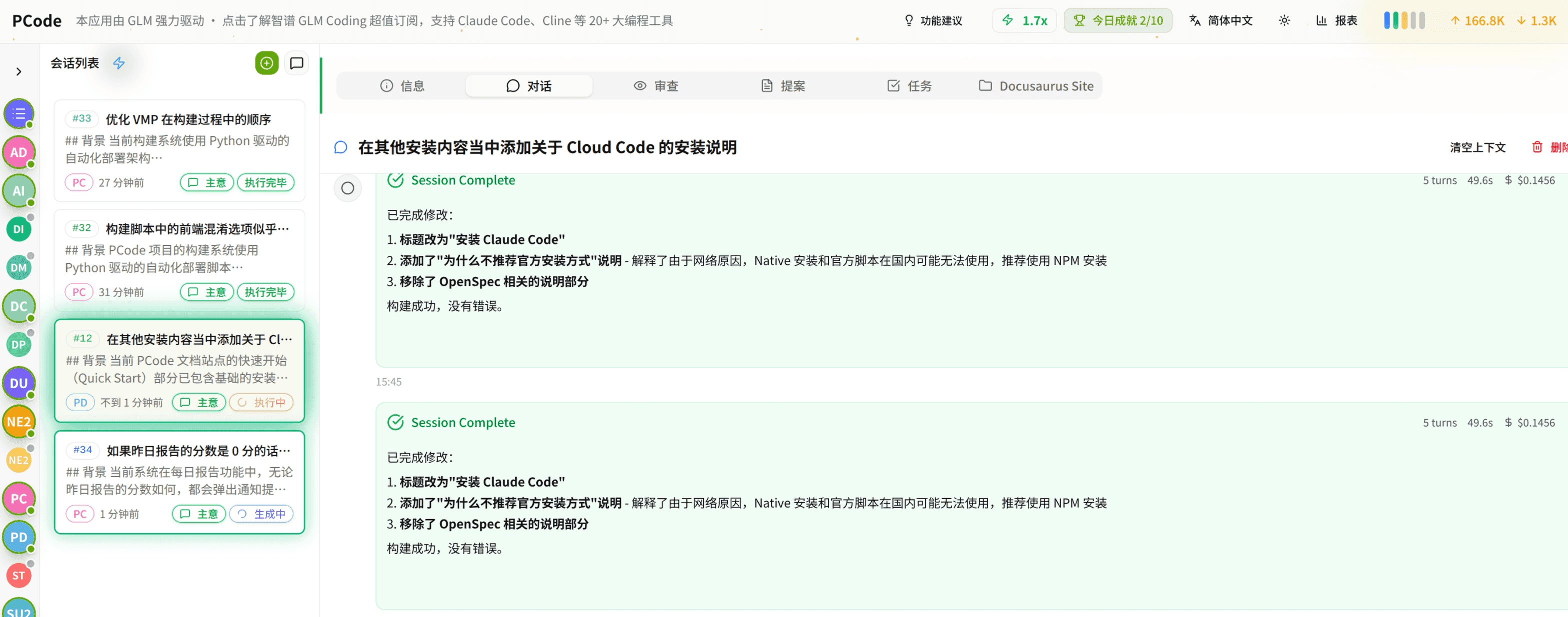
- SmartStructured workflows turn intent into an executable path from idea to shipped change.
- EfficientMulti-agent workflows keep research, implementation, and review moving in parallel.
- FunHero Dungeon interfaces make long coding sessions visual, collaborative, and rewarding.